Anthropic in Ensor at a glance

APIAnthropic Messages API (https://api.anthropic.com)
Web searchAnthropic web search tool
Image inputYes
PDF inputYes
StreamingYes
ModelsEnsor loads the Claude models available to your key, or you can type any Claude model ID.

How to set up Anthropic on iPhone

  1. Create an API key in Anthropic Console.
  2. Open Ensor, go to Contacts and tap an AI’s avatar, or create a new AI.
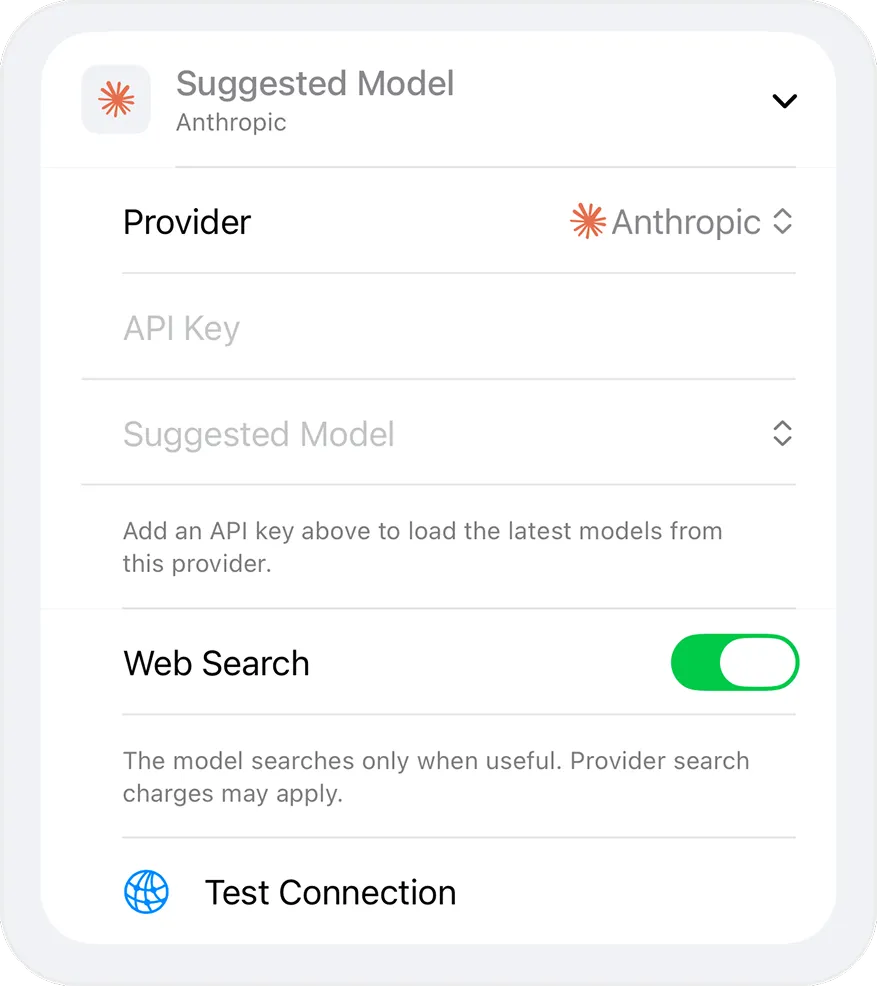
  3. Set Provider to Anthropic and paste your key into API Key.
  4. Choose a model. Ensor loads the Claude models available to your key, or you can type any Claude model ID.
  5. Tap Test Connection, save, and start chatting.

Good to know

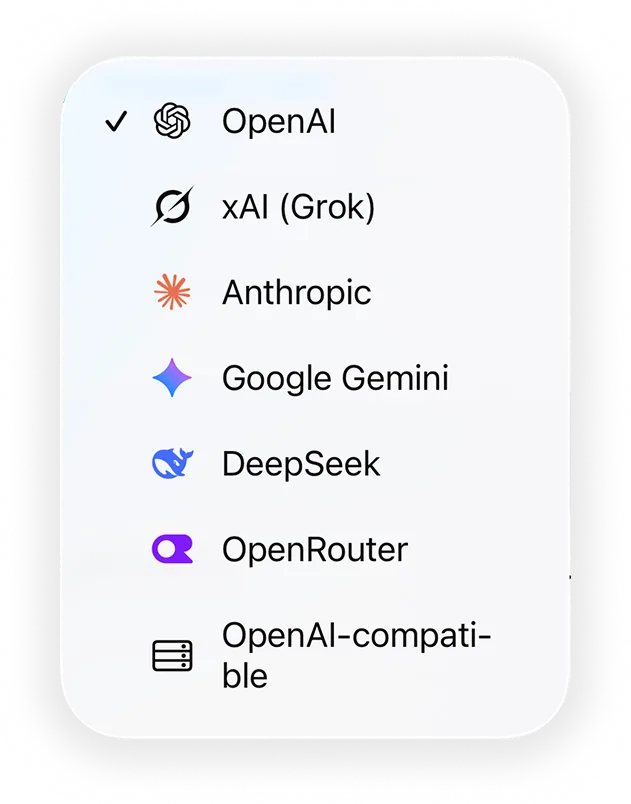
Selecting Anthropic as the provider for an AI contact in EnsorProvider, API key, model, web search and Test Connection settings in Ensor

Use Claude alongside other models

Every AI contact in Ensor has its own provider and key, so you can keep Claude next to other models and even put them in the same group chat. Other providers:

Frequently asked questions

Can I use the Claude API on iPhone?

Yes. Add your Anthropic API key to an AI contact in Ensor, choose a Claude model, and start chatting. Ensor calls the Anthropic Messages API directly from your iPhone.

Is Ensor free to use with Claude?

Yes. Ensor is free. Your Anthropic account bills you for the API usage on your key.

Where is my Anthropic API key stored?

In the iPhone Keychain, set to this device only. It is never stored in the app database, never exported and never sent anywhere except the provider’s API.
No Ensor account. No Ensor cloud. Your AI, your way.

Free · Requires iOS 17 or later · Bring your own API key

Download on theApp Store