OpenAI-compatible in Ensor at a glance
| API | Any HTTPS endpoint that implements the OpenAI Chat Completions format (Ensor appends /chat/completions to your base URL) |
|---|---|
| Web search | Not enabled in Ensor yet |
| Image input | Yes |
| PDF input | No |
| Streaming | Yes |
| Models | Enter your HTTPS base URL and the exact model ID your endpoint expects. |
How to set up OpenAI-compatible on iPhone
- Create an API key in your provider’s dashboard.
- Open Ensor, go to Contacts and tap an AI’s avatar, or create a new AI.
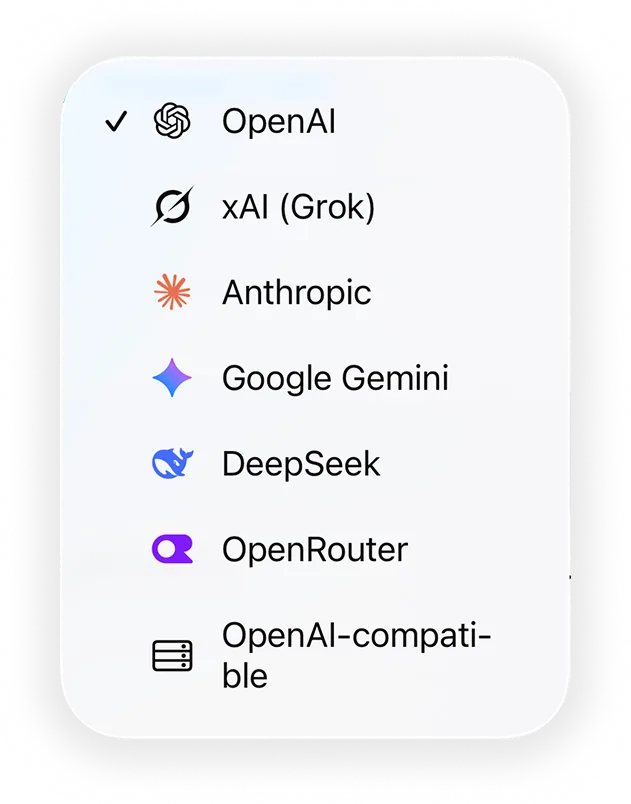
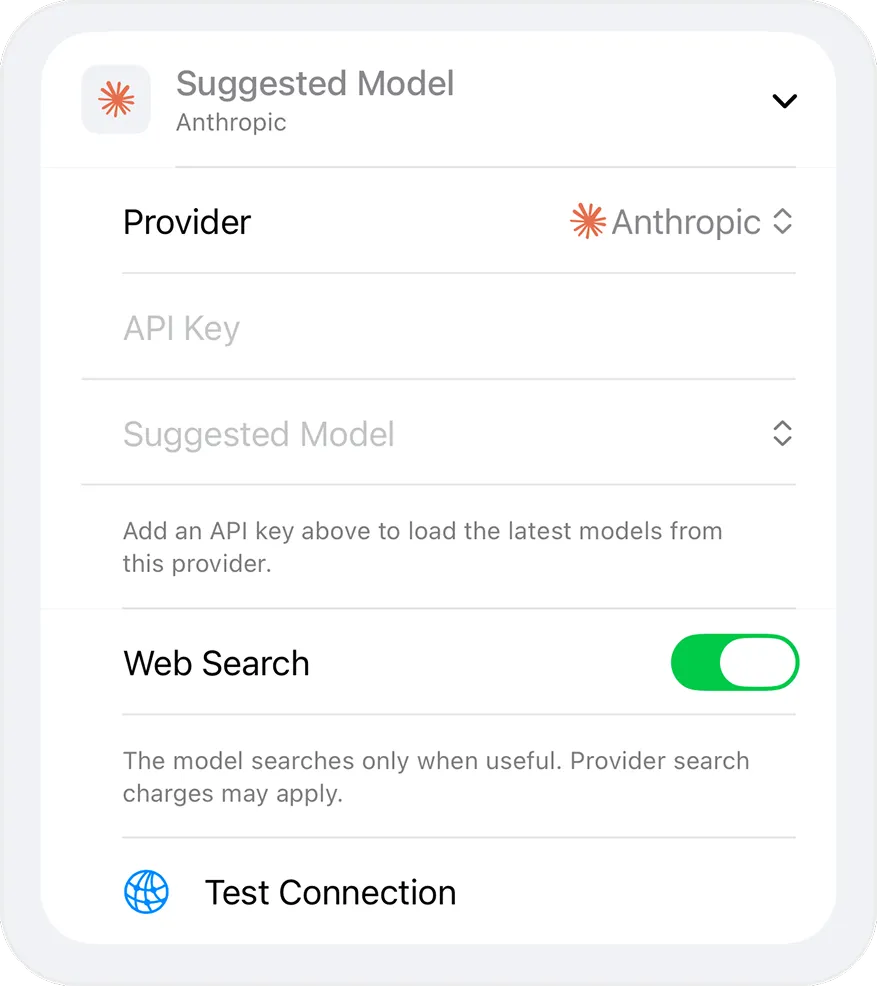
- Set Provider to OpenAI-compatible and paste your key into API Key.
- Enter your HTTPS Base URL.
- Choose a model. Enter your HTTPS base URL and the exact model ID your endpoint expects.
- Tap Test Connection, save, and start chatting.
Good to know
- The base URL must use HTTPS.
- Ensor does not assume the endpoint supports web search or OpenAI-only fields.
- Image input is sent in the standard format; whether it works depends on your endpoint and model.
- Requests go directly from your iPhone to OpenAI-compatible. There is no Ensor server in between.